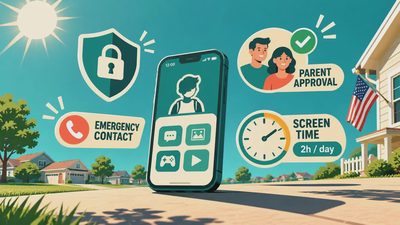
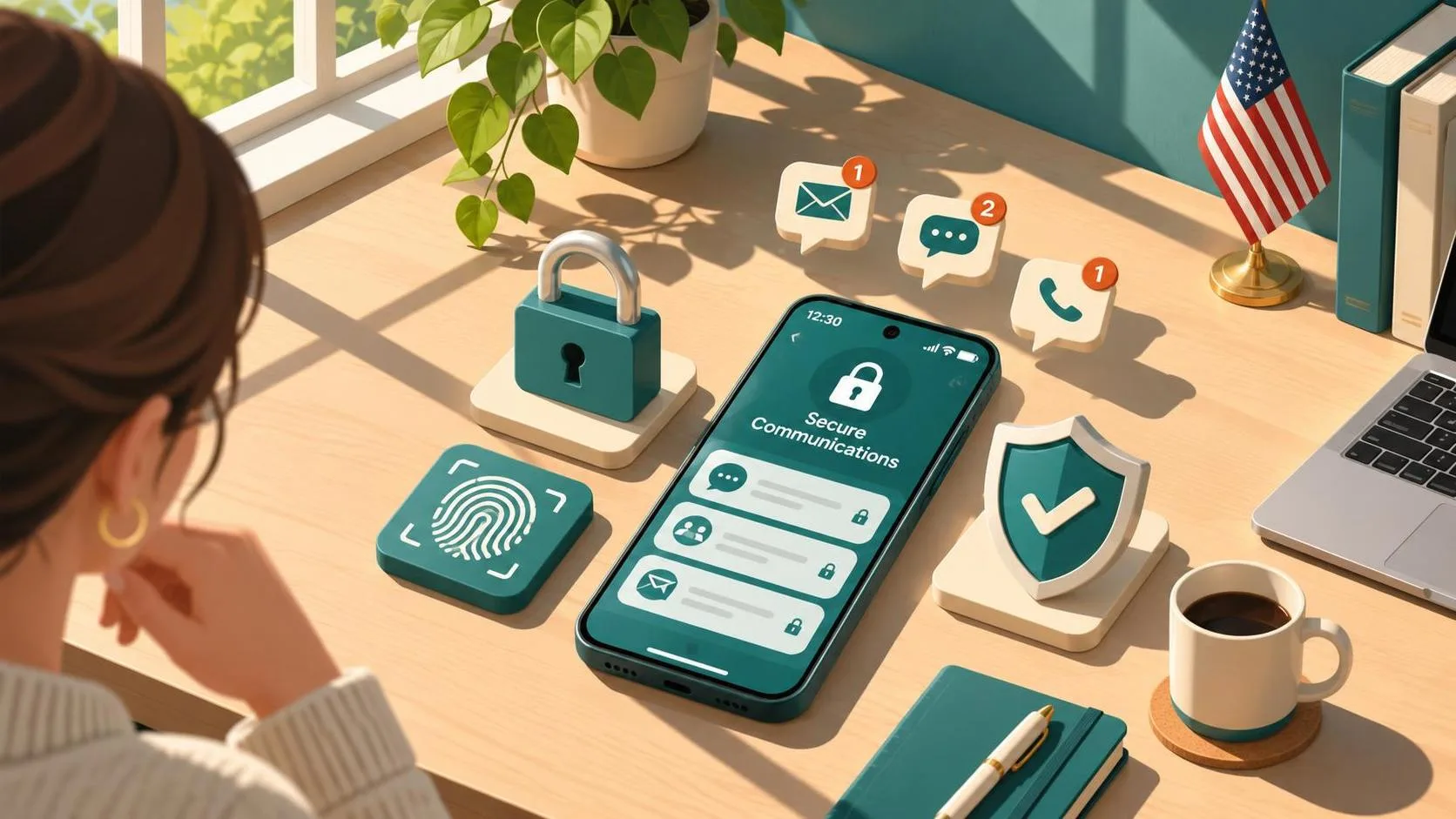
Thinking about privacy focused smartphones? Start by checking the software update support and privacy settings on the phone you already have. For most families, an up-to-date iPhone or Google Pixel with carefully chosen settings is a more practical first step than an unfamiliar specialty device. If you want more control and are comfortable with a technical setup, a supported Pixel running GrapheneOS is another option.
No phone makes you invisible to your carrier, apps, or the websites you visit. The right choice depends on which information you want to protect and whether everyone using the phone can manage it comfortably.
Which privacy focused smartphones? Three useful starting points
An Apple iPhone suits a household that wants a familiar experience and straightforward privacy controls. You can review app permissions, limit tracking requests, and choose what goes into iCloud. Apple also offers Advanced Data Protection for iCloud, an optional setting that extends end-to-end encryption to more categories of cloud data. Read the recovery requirements before turning it on: losing access to your trusted devices and recovery options can mean losing access to protected data.
A Google Pixel running its standard Android software suits someone who prefers Android and wants accessible security and permission controls. Review Google account activity settings as well as the phone's settings; turning off a permission on the device does not necessarily erase information already saved to an account. Before buying, check Google's support page for the specific model's remaining security update period.
A supported Pixel with GrapheneOS suits a technically confident person who wants an alternative operating system with a strong security focus and more control over Google services. Installation and maintenance require more care than a standard phone setup. Some banking, payment, work, or healthcare apps may not work as expected, so check the apps your household depends on before switching. Use the project's official installation and supported-device instructions, not a stranger's download link.
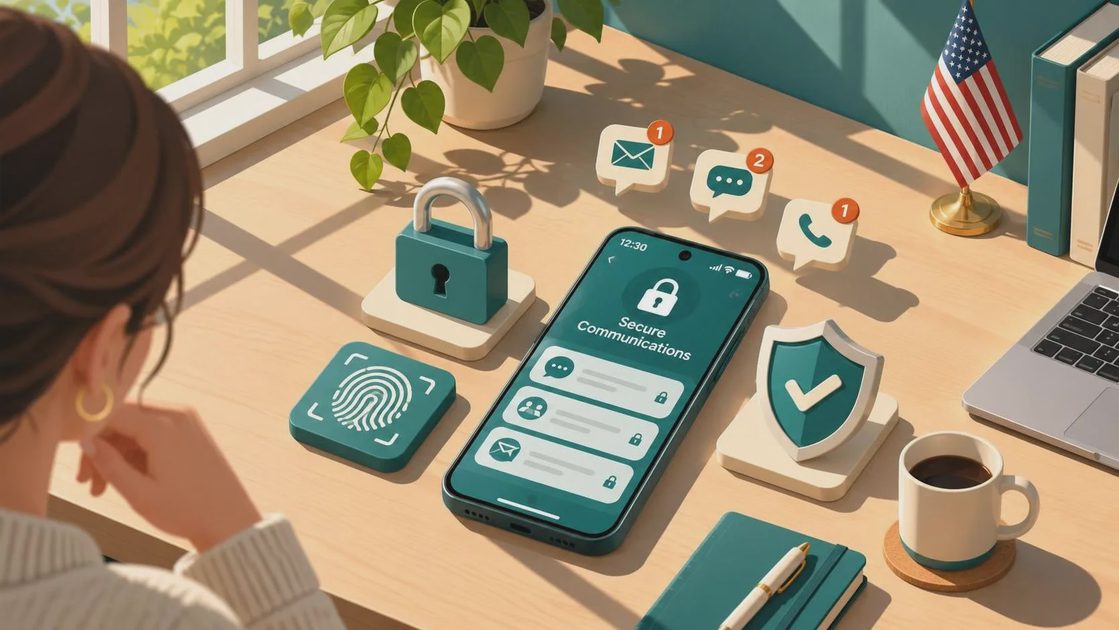
Do privacy focused smartphones? Not without the right settings
The phone is only part of the picture. An app can still collect information you give it, and a messaging service may keep records about your account even when message contents are encrypted. Focus on the settings that match your family's actual routines.
Start with location access. A navigation app may need your location while you use it; a flashlight app generally does not. In your phone's privacy or permission settings, review location, microphone, camera, contacts, and photos. Where available, choose access only while using the app, or select specific photos rather than the whole library.
Next, review cloud backups. Backups can rescue family photos and account data after a lost phone, but they also put copies outside the device. Check what is included, whether end-to-end encryption is available for that data, and how you would recover the account. Do not turn off a backup until you know where another usable copy lives.
Finally, check the lock screen. A long passcode and automatic locking help protect a phone left in a car or waiting room. Hide sensitive notification previews if medical messages or banking alerts appear where another person could read them. Biometrics can be convenient, but keep the passcode and account recovery method somewhere safe and accessible to the owner.
Are privacy focused smartphones? Worth a switch?
A replacement makes sense when your phone no longer receives security updates, cannot run the apps you need safely, or cannot provide a setting that matters to you. Check the manufacturer's support information for the exact model, not just the brand. A discounted older phone may have less support remaining than a more expensive one.
A switch is less urgent if your existing device is supported and your main concern is an app collecting too much information. Remove the app, restrict its permissions, or use its website instead. Also review the account associated with the phone: a new device will not automatically fix a reused password or an account with an unfamiliar recovery email.
Before changing platforms, make a short list of essentials: banking, medical portals, school communication, authentication apps, photos, and contacts. Confirm how each will transfer. In particular, follow the authenticator app's transfer or recovery instructions before wiping the old phone. Keep the old device available until you have signed in and checked your important data on the replacement.
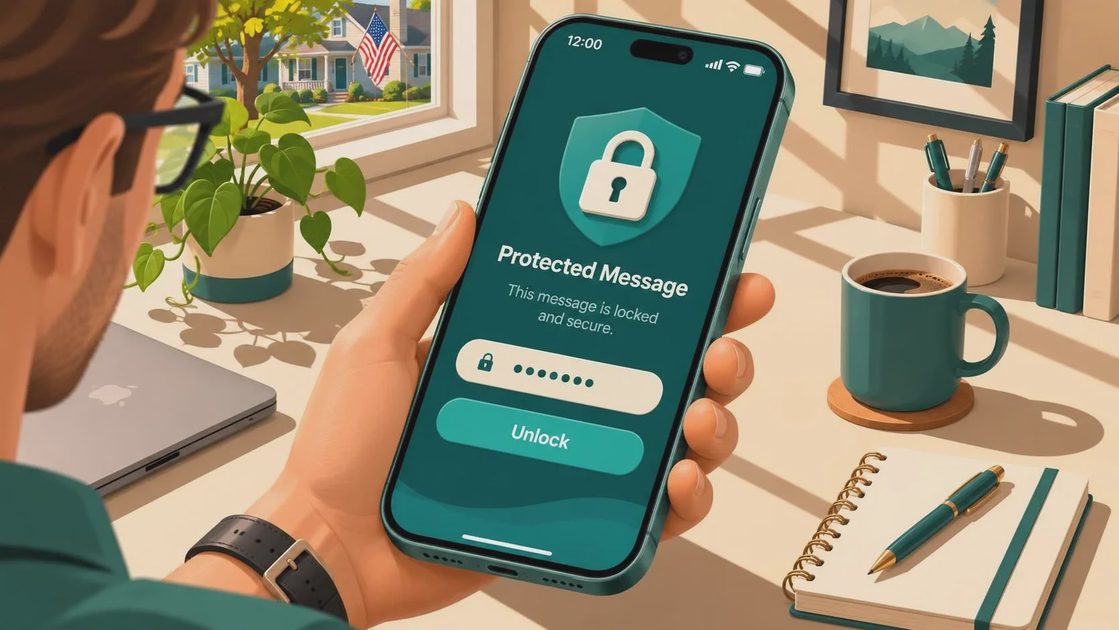
What privacy focused smartphones? Cannot hide
Your mobile carrier needs information about your connection to provide service, and apps can learn what you enter or do within them. A private browsing mode mainly limits what is saved in that browser on that device; it does not make browsing invisible to websites, an employer's network, or an internet provider.
Likewise, a privacy-oriented operating system cannot prevent someone from persuading a family member to share a one-time login code. For most households, avoiding account takeover deserves at least as much attention as choosing hardware. Use unique passwords, enable multifactor authentication where available, and keep recovery contact details current. Passkeys or security keys are useful options when a service supports them.
If a phone is lost, use the manufacturer's device-finding service from a trusted device to locate or lock it. If you suspect an account has been accessed, change that account's password from a trusted device and review its signed-in devices and recovery information. Save relevant messages or screenshots before deleting anything, and contact the bank using the number on the card if financial accounts may be involved.
A ten-minute household privacy check
Sit with the phone's owner and say, “Could we look at which apps can see your location and photos? We can change anything that doesn't feel useful.” This keeps the owner in charge and makes it easier to spot an app they no longer recognize or need.
Check for system updates, review location permissions, and confirm that the phone has a screen lock. Then open the account's security settings and verify the recovery phone number and email address. Write down where recovery instructions are kept, but do not put passwords or one-time codes on a note attached to the phone.
Take the next safe step: choose one setting to review today. A supported, understandable phone with sensible permissions is usually more valuable to a family than a complicated setup nobody can maintain.