Start by setting a strong screen lock and turning on the device’s built-in finding feature. If you’re wondering how can you protect data on a mobile device, those two steps make it harder for someone who finds or steals your phone to open it and give you a way to locate or remotely lock it. Then update the software, secure your main account, and check that important information is backed up.
You don’t need to buy an extra security app to get started. Most families can make meaningful improvements using settings already on their phones and tablets. Take the next safe step: spend five minutes checking the lock and recovery settings on the device you use most.
Start with the lock screen and recovery tools
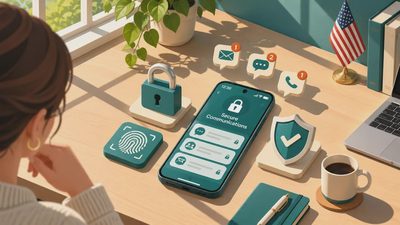
Choose a long, unique passcode that you can remember without writing it on the device. Avoid birthdays, repeated digits, and codes you use for bank cards. A longer PIN or a password with letters and numbers is generally harder to guess than a short PIN. Face or fingerprint unlock can make a strong passcode easier to live with, but the passcode remains important for restarts and other security checks.
Set the screen to lock automatically after a short period. Consider hiding the contents of text and email notifications on the lock screen, especially if they may display verification codes or sensitive messages. You can usually leave a notification visible while concealing its contents until the phone is unlocked.
On an iPhone, check that Find My is enabled. On Android, check Google’s device-finding settings and confirm the device appears in your account. Names and menus can vary by device and software version. These tools typically need advance setup, and a lost device’s location or remote commands may depend on connectivity and other settings.
Protect the account behind those tools, too. Your Apple Account or Google Account can hold backups, photos, and access to other services. Use a unique password or a passkey where offered, turn on two-factor authentication, and review recovery phone numbers and email addresses. Store recovery codes somewhere separate from the phone, such as a secure password manager or a protected paper copy at home.
How can you protect data on a mobile device from apps and scams?
Install operating-system and app updates promptly. Updates often fix security weaknesses as well as everyday bugs. Turn on automatic updates where available, and replace a device that no longer receives security updates when you reasonably can. If a family member relies on an older phone, help them check its support status with the manufacturer before making a decision.
Download apps from the official app store when possible, and pause before installing an app sent through a message or promoted by an unexpected caller. Official stores reduce some risks, but they do not make every app trustworthy. Look at the developer’s name and ask whether the app is actually needed. Remove apps nobody uses.
Review permissions for location, camera, microphone, contacts, and photos. A navigation app needs location access to give directions; a simple calculator generally does not. Choose access only while using the app, or select limited photo access, when those options fit. Denying an unnecessary permission is reversible if a feature later needs it.
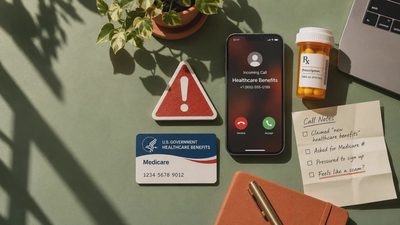
Treat an urgent text about a delivery, bank account, or medical portal as a reason to pause, not a reason to tap. Open the organization’s app or type its known website address yourself. Never give a one-time verification code to someone who contacts you unexpectedly, even if they claim to be fixing an account.
If a parent is unsure about a message, try: “Let’s leave that link alone and call the number on your card together.” The goal is to make checking feel normal, not to make anyone embarrassed about asking.
Back up what you cannot easily replace
A backup helps when a phone is lost, damaged, or needs to be erased. Use the device’s cloud backup, an encrypted computer backup, or another approach that fits your household. Check that backup is enabled and that the most recent successful backup is recent enough for your needs. A setting that is switched on is not much help if storage is full and backups have stopped.

Pay special attention to photos, contacts, and authentication apps. Some services sync information separately from the device backup, and recovery methods differ. Before changing phones or wiping one, confirm how you will sign in to important accounts and restore any authenticator codes. An encrypted local backup may include information that an unencrypted one does not; keep its password safe because losing it can make that backup unusable.
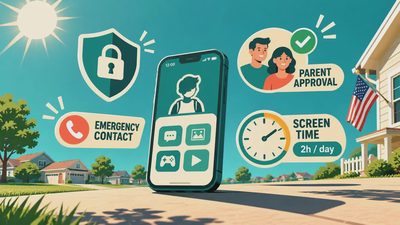
For shared family devices, give each person a separate account or profile where supported. On a child’s tablet, review purchase approvals and parental controls together. Shared access should not require sharing the password to a parent’s main email or financial accounts.
If a phone is lost, stolen, or already compromised
First, use another trusted device to open the manufacturer’s device-finding service. Mark the phone as lost or lock it remotely if that option is available. If you believe it was stolen, do not confront someone or attempt to recover it yourself. Contact local law enforcement if appropriate.
If there is evidence that someone knows the passcode or has entered sensitive accounts, change the password for the primary Apple or Google account and affected accounts from a trusted device. Contact your bank promptly if banking information or payments may be involved, and ask the carrier about suspending service and protecting the number from unauthorized transfer. Remote erasure can protect data, but check the service’s instructions first: erasing a device can affect later recovery or location options.
Save useful evidence before deleting suspicious messages or resetting a device: screenshots, transaction details, phone numbers, and the time you noticed a problem. Do not send passwords or verification codes in those screenshots. A strange pop-up alone does not prove a phone has been hacked, but a confirmed unauthorized transaction deserves a call to the financial institution.
For a household incident card, write down the bank’s verified phone number, the carrier’s support number, and where recovery instructions are stored. Keep passwords and recovery codes separate from the card. This guide is educational, not individualized cybersecurity or financial advice; when money or identity information is at risk, the relevant institution can help with the next step.