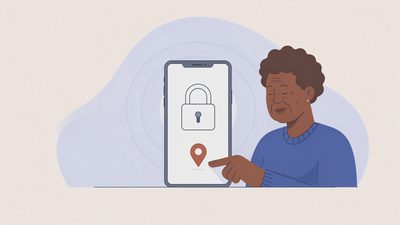
Many older adults will use an iPhone daily for calls, messages, and photos yet avoid anything that feels like “security settings.” The result is a device that is both essential and under-protected. The solution is not a long list of features. It is a short list of changes that deliver the most protection for the least ongoing effort.
The principles for this setup
Every change must be explainable in one sentence
Daily use should feel the same or simpler
Recovery paths must be known to at least one trusted person
Nothing requires daily decisions from the parent
One-sentence explanations as the usability test
If a setting cannot be explained in a single clear sentence that the parent can repeat, it is likely to be turned off later or never fully understood. The one-sentence rule keeps the setup inside the parent’s working knowledge rather than creating a system only the adult child can operate.
Daily use as the non-negotiable constraint
Any configuration that makes ordinary calling, messaging, or photo viewing noticeably harder will be resisted or reversed. The protective settings must leave the daily experience unchanged or improved. Friction in ordinary use is the most common reason security features are abandoned.
Known recovery paths as the shared safety net
Find My, backup codes, and the household emergency sheet must be understood by at least one other trusted person. A perfectly configured phone that only the parent can recover creates a single point of failure when the parent is unavailable or confused. Shared knowledge of recovery is part of the design.
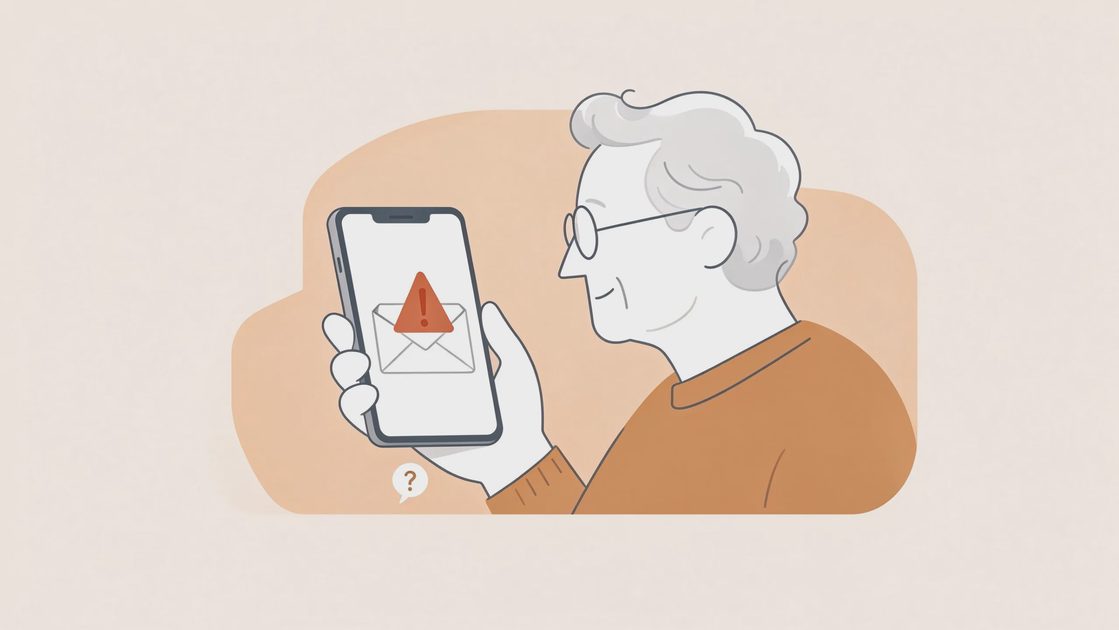
The essential settings
1. A memorable passcode and biometrics
Set a six-digit passcode the parent can remember. Enable Face ID or Touch ID so daily unlocking stays easy. Confirm that the parent can still unlock with the passcode alone if the biometric fails.
2. Find My iPhone turned on
This is the single most useful recovery feature. Show the parent that the device appears in Find My on another family member’s phone. Explain that it can play a sound or mark the phone as lost if it is misplaced.
3. Automatic updates
Turn on automatic iOS updates. Most older adults will not manually update; automatic updates close known problems without effort.
4. Two-factor authentication for the Apple ID
Enable it using a trusted phone number that the parent controls. Record the recovery key or backup codes on the household emergency sheet. Do not skip this step; the Apple ID controls the device and often the photo library.
5. Simplified Lock Screen and notifications
Reduce lock-screen previews for messages if the parent is concerned about others seeing content. Keep phone and message notifications clear and reliable so important calls are not missed.
Passcode and biometrics as the daily foundation
A six-digit passcode that the parent can reliably recall, paired with Face ID or Touch ID for ordinary unlocking, balances security and usability. Confirming that the passcode alone still works prepares for the moments when biometrics fail because of wet hands, gloves, or temporary conditions. The combination is stronger and more practical than either method alone.
Find My as the highest-value single toggle
Enabling Find My and demonstrating that the device appears on a family member’s phone turns an abstract setting into a concrete capability. The parent who has seen the phone locate itself is more likely to leave the feature on and to understand its purpose when the phone is later misplaced.
Automatic updates as protection without decisions
Manual update prompts are frequently dismissed or ignored. Automatic updates remove the decision entirely and ensure that known vulnerabilities are addressed without requiring ongoing attention from the parent. The setting is set once and then left alone.
Optional but high-value additions
Medical ID in the Health app with emergency contacts and key conditions
A short list of favorite contacts for easy calling
Screen Distance or other accessibility features only if the parent wants them
Avoid loading the home screen with new apps the parent did not request. Extra icons create confusion and are often ignored.
Medical ID as quiet preparedness
Completing Medical ID with emergency contacts and any critical conditions provides information to first responders without requiring the parent to do anything in the moment of need. The feature sits unused until it is required; its value is precisely that it does not demand daily attention.
Favorites as a simplification of daily calling
A short, curated list of favorite contacts reduces the need to search through a long address book. For many older adults this is a usability improvement that also reduces the chance of misdialing. The list should be built with the parent, not imposed.
Resisting the urge to add extra apps
Each additional icon is a potential source of confusion and a potential path to unwanted purchases or subscriptions. The low-friction setup deliberately keeps the home screen close to what the parent already understands. New apps are added only when the parent requests them and understands their purpose.
How to do the setup together
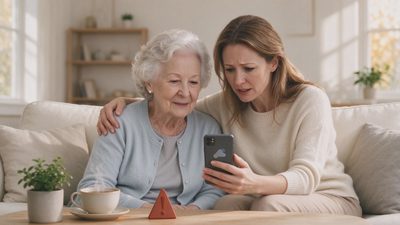
Sit side by side. Let the parent hold the phone and perform each tap while you explain why. After each change, have them unlock the phone or open Find My so they experience success immediately. End the session while patience is still high. Forty-five minutes is usually enough for the core settings.
Parent as the primary actor
When the parent performs each tap, the muscle memory and the sense of ownership both increase. Demonstrating while the parent only watches produces a configuration the parent cannot reliably maintain or recover. Hands-on completion is the method that lasts.
Immediate success after each change
Unlocking the phone after setting the passcode, or seeing the device appear in Find My after enabling it, converts an abstract setting into a felt capability. Those small successes sustain attention through the rest of the short session and increase the likelihood that the settings remain enabled.
Ending while patience remains
A session that continues until frustration appears often results in later reversal of the changes. Stopping at forty-five minutes or at the first sign of fatigue leaves a positive experience and a completed core setup. Additional optional features can wait for a later visit.
Documenting what you did
Add to the household emergency sheet:
The Apple ID email
Where the recovery key or backup codes are stored
That Find My is active
The passcode hint only if the parent wants one (never the passcode itself)
Recording the Apple ID and recovery materials
The Apple ID controls the device and often the photo library. Noting the email address and the location of recovery materials on the emergency sheet ensures that a later lockout or device loss can be addressed without reconstructing the information from memory.
Confirming Find My status in writing
A simple note that Find My is active and which family member’s phone can see the device prevents later uncertainty. The written confirmation is part of making the recovery path known to more than one person.
Passcode hints versus the passcode itself
If the parent wants a hint recorded, it can be written in a form that does not reveal the actual code. The passcode itself never belongs on the emergency sheet. The distinction protects the device while still supporting memory under stress.
What this does not mean
A low-friction setup is not a fully hardened device. It is the set of changes most older adults will actually live with. Additional protections can be added later if the parent becomes more comfortable or if risk increases.
Usability as the limiting factor
The most secure theoretical configuration is irrelevant if the parent turns the features off or cannot operate the phone. The low-friction set is chosen because it is the maximum that remains compatible with daily use and continued acceptance. Further hardening is possible later; initial rejection is harder to reverse.
Incremental improvement over time
Once the core five settings are stable and the parent is comfortable, optional features or stronger authentication methods can be introduced in short additional sessions. The initial setup does not have to be the final state; it only has to be a stable, protective starting point.
Matching the setup to the individual
Some older adults will accept and maintain more settings; others will tolerate only the minimum. Observing the parent’s comfort and adjusting the scope accordingly produces better long-term protection than applying a uniform maximum checklist.
The next safe step
On the next visit, open Settings together and confirm that Find My iPhone is on and that automatic updates are enabled. Those two toggles alone improve recovery odds significantly.
Take the next safe step.