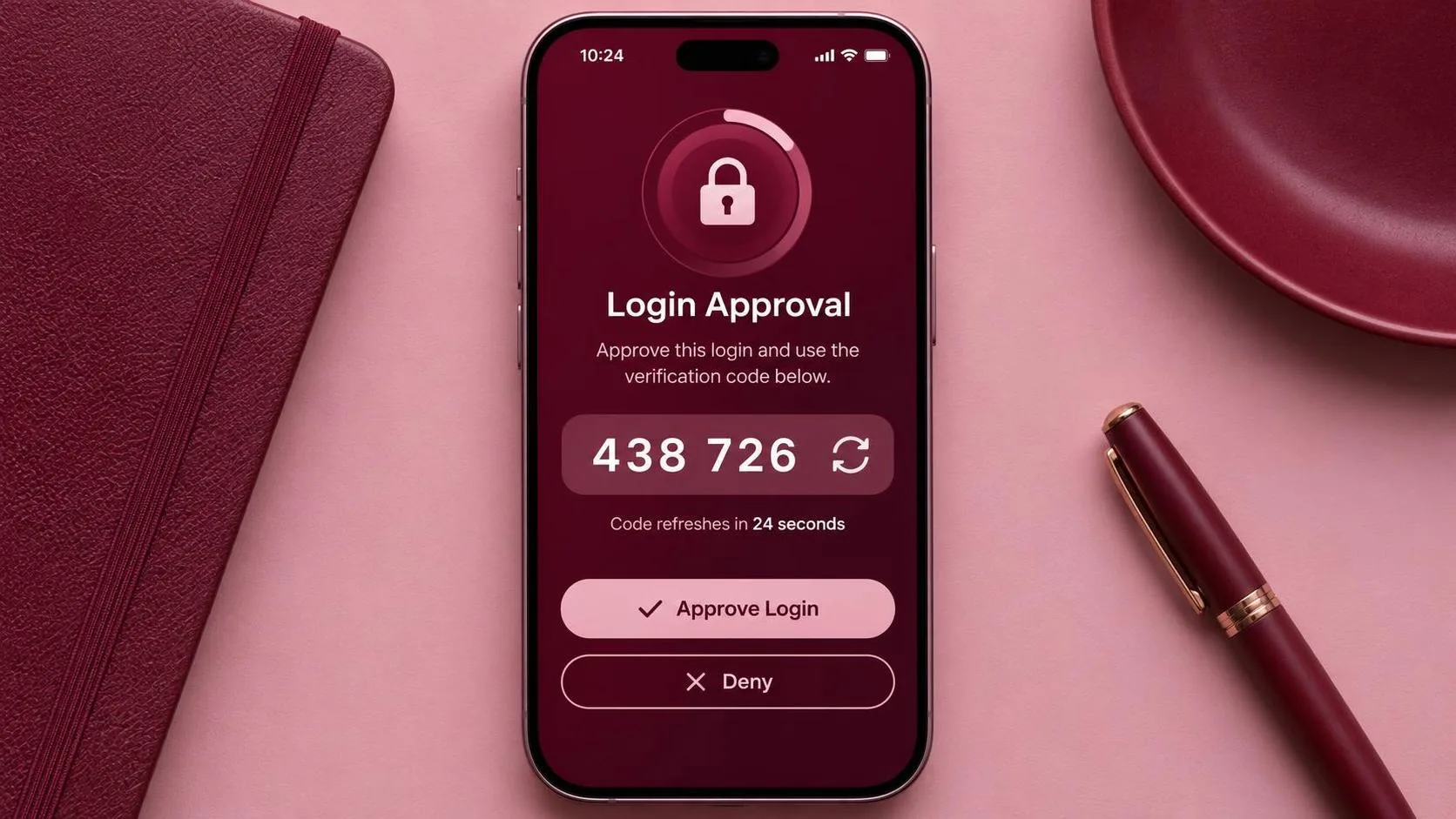
Looking for a 2 factor authentication app? Start with an authenticator from a reputable provider, then turn it on for your primary email account. The app generates a temporary sign-in code that you enter after your password. Google Authenticator is a straightforward option for people who want a dedicated code app; Microsoft Authenticator can be a convenient choice for households already using Microsoft accounts; and 1Password suits people who want to manage passwords and verification codes together. Check the account's security settings first: some services require a particular app or offer different sign-in methods.
Before you scan anything, make sure you can save the account's recovery codes somewhere safe. A lost phone should be an inconvenience, not the start of a family emergency.
Why use a 2 factor authentication app?
Two-factor authentication, often shortened to 2FA, asks for two different kinds of proof that you are the account owner. Typically, that means something you know, such as a password, plus something you have, such as an authenticator on your phone.
Many authenticator apps produce a six-digit code that changes regularly. When you sign in, the website asks for your password and then the code shown in the app. The code is generated on the device, so you generally don't need a cellular signal to get it.
This adds a meaningful obstacle if someone learns your password. An app-generated code also avoids some risks associated with text messages, including a criminal taking over your phone number. But it is not foolproof: a fake sign-in page can trick you into giving away both your password and a fresh code.
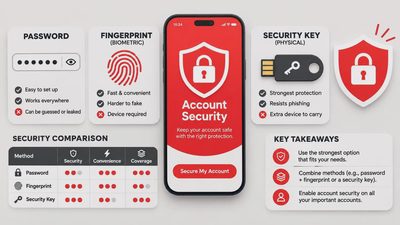
Some services also support passkeys or physical security keys. These can offer stronger protection against phishing when properly used. If your account offers a passkey and you understand how to recover it, that's worth considering alongside an authenticator.
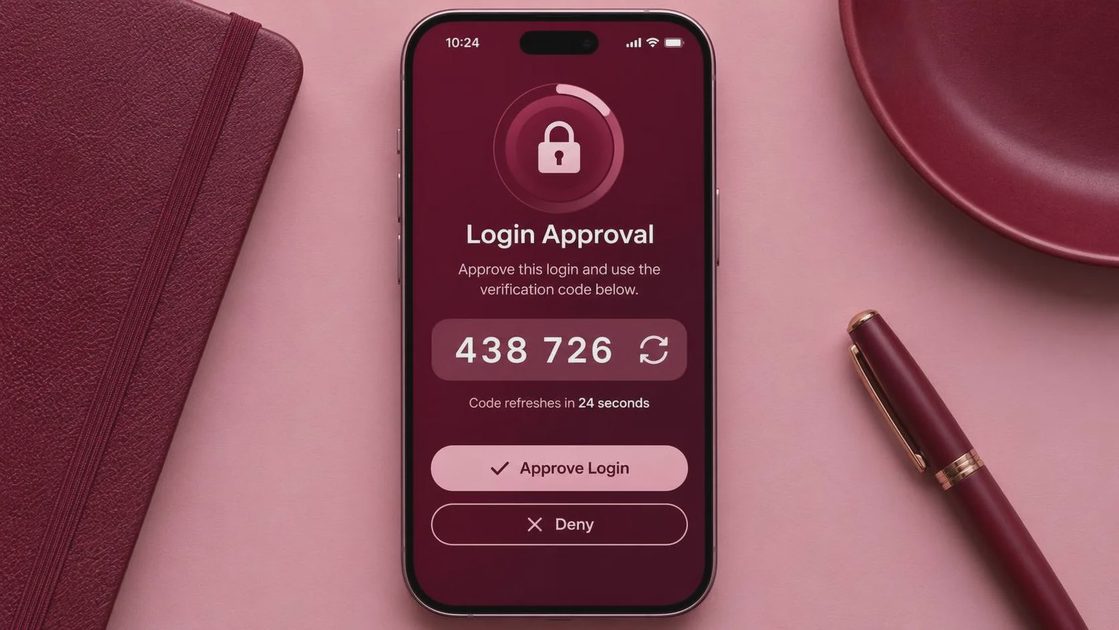
Choose an app your household can recover
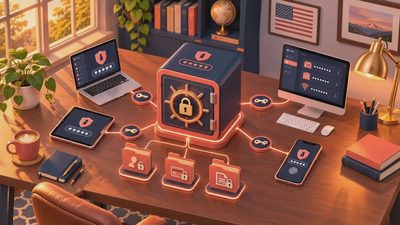
A dedicated authenticator keeps verification codes separate from your password manager. That separation may appeal to someone who prefers not to store both credentials in one place. Keeping codes in a password manager, on the other hand, can make sign-ins and device changes easier. The trade-off is that anyone who gains access to that password manager could potentially access both the passwords and the codes stored there.
Whatever you choose, download the app through your device's official app store or the provider's official website. Check the publisher name before installing. Look at the app's backup and restore instructions before adding important accounts; syncing and recovery options vary by provider and may require you to turn them on.
For a parent or partner, ease of recovery matters as much as the interface. Ask, “If this phone stopped working tomorrow, how would we get you back into your email?” The answer should not depend on remembering where a single screenshot is buried.
Set it up without locking yourself out
Start with an account you can already access. Open its security settings and look for two-factor authentication, two-step verification, or an authenticator app. Choose the app option if it's offered. The site will usually display a QR code, which you scan using the authenticator app's add-account function. If you are setting up on the same phone, the service may offer a setup key you can enter instead.
The QR code or setup key is a secret: someone who copies it may be able to generate the same codes. Don't send it in a family group chat or save an unprotected photo of it. The site will generally ask for a code from the app to confirm setup; complete that step before closing the page.
Next, save any recovery codes the service provides. These are often one-use codes for getting back in when your usual method isn't available. A printed copy in a secure place or a protected password manager can work. Label which account they belong to, and follow the service's instructions for replacing codes after use.
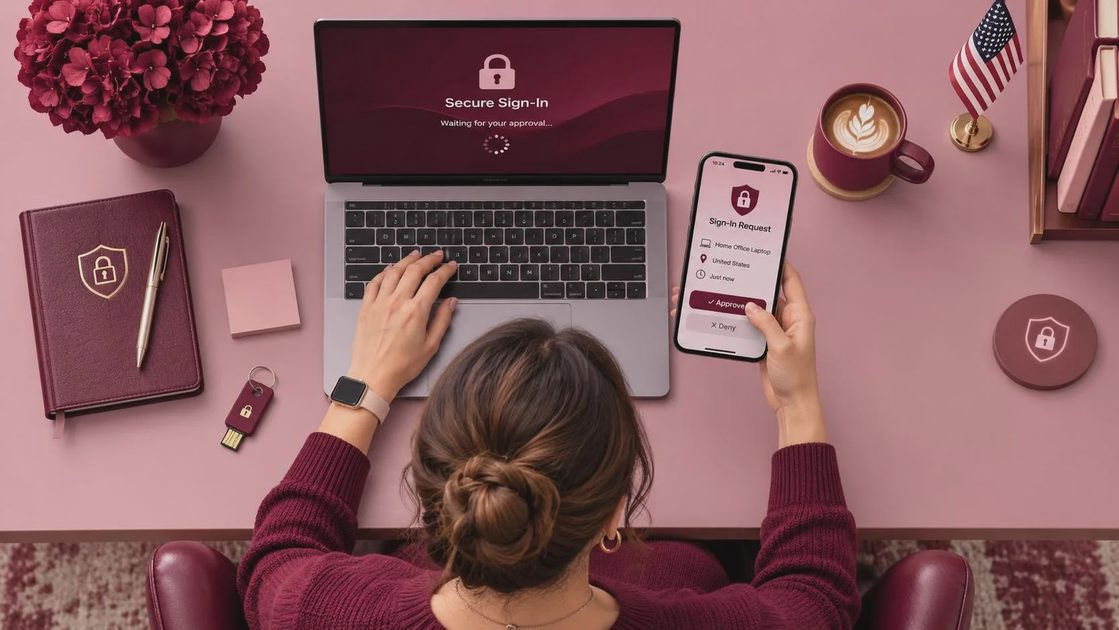
Finally, confirm that your recovery email and phone number are accurate. If the service permits another trusted sign-in method, consider adding it. Don't remove an existing method until the new one is confirmed and you have a workable recovery plan.
What to do when a phone is lost or replaced
If you still have the old phone, follow the authenticator provider's transfer or restore instructions before erasing it. Then verify that you can sign in with the new device. Depending on the app and account, you may need to transfer entries, restore a backup, or set up individual accounts again.
If the phone is gone, use a saved recovery code or another sign-in method on a trusted device. Once you're in, review the account's security settings, remove the lost device or old authentication method where the service allows it, and add a replacement. Change the password if you suspect someone also obtained it, and review recent account activity for anything you don't recognize.
If you cannot sign in, use the account provider's official recovery process. For a bank or healthcare portal, call the number on a statement, card, or the organization's official website. Never pay a stranger who promises an instant unlock. Recovery can take time, and a legitimate provider may need to verify your identity.
If someone asks for your code
A one-time code is for a sign-in you initiated, not for proving your identity to an unexpected caller. If a caller claims to be from the bank and asks you to read a code aloud, say, “I'm going to hang up and call the number on my card.” Then make that separate call. Don't approve an unexpected sign-in prompt, either.
If you already shared a code, don't blame yourself. Contact the affected provider through an official channel, change the password if you can, and review recovery settings and recent activity. Save relevant messages or screenshots without sharing codes or sensitive account details. If money or a bank account may be involved, call the bank promptly.
Take the next safe step: choose one important account today, enable an available second factor, and put its recovery instructions somewhere you can find them. This guide is educational, not individualized cybersecurity or financial advice.