
When someone asks, “Where is my backup code?” they are usually standing outside an account that suddenly matters: email, banking, health care, school, or a password manager. Take the next safe step by slowing down and identifying which service is requesting the code. A backup code is usually a one-time recovery number created when two-factor authentication was enabled. It is not the same as your password, phone number, or regular authenticator code.
The safest first move is to avoid guessing repeatedly. Several failed attempts can trigger a temporary lockout, and searching through random text messages can lead you to enter a code for the wrong account. Look at the sign-in screen, note the exact service name and web address, and take a screenshot if the message is unusual. Do not send a recovery code to someone who called, texted, or emailed you unexpectedly. Legitimate support staff generally will not ask for a one-time code to “verify” your identity during an unsolicited contact.
What a backup code is and when you need it
A backup code is an emergency alternative to your usual second sign-in step. For example, your account might normally ask for a password plus a six-digit code from Google Authenticator, Microsoft Authenticator, Authy, or an SMS message. If your phone is lost, replaced, out of battery, or unable to connect, a saved recovery code can let you sign in once.
Codes are commonly presented as a list of five to ten short number-and-letter strings. Each code is intended for one use. After you enter one successfully, cross it off or remove it from your saved list. A service may call these recovery codes, backup codes, emergency codes, or one-time codes. The wording differs, but the purpose is similar.
If you are wondering, “Where is my backup code?” check the places you selected when setting up two-factor authentication. It could be in a printed sheet, a password manager secure note, an encrypted digital file, or a screenshot stored in a protected photo folder. Do not assume it is in your text messages. Many services show the codes only once during setup and do not automatically text them later.

How to find your backup code safely
Start with the account’s official sign-in page, opened through a bookmark or by typing the known address yourself. Choose options such as “Try another way,” “Use a recovery code,” or “I cannot access my phone.” These choices often reveal whether the service accepts a backup code or offers another recovery method.
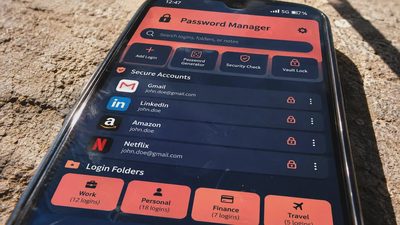
Next, search your own records using terms such as “recovery codes,” “two-step verification,” or the name of the service. Search locally in your password manager, files, notes, and printed household records. If you use 1Password, Bitwarden, Apple Passwords, or another password manager, look inside the account entry’s secure notes rather than the ordinary username and password fields.
If your backup code is printed, check whether the page includes the account name and creation date. An old list may be invalid if you generated a new set later. Services often invalidate previous codes when you choose “Get new codes” or reset two-factor authentication. Never photograph a code and send it through a family group chat, even if everyone in the chat is trusted. Group messages are easy to forward, back up, or expose on another person’s device.
A useful script for helping a parent is: “I am not asking you to read me the code. I will help you find the official recovery screen, and you can enter it yourself.” That protects both people and avoids turning a helpful family member into a new security risk.
What to do when you cannot find one
If the answer to “Where is my backup code?” is “I do not know,” do not panic and do not pay an internet stranger who promises instant recovery. Use the service’s account-recovery process. It may offer a trusted device, an already signed-in browser, a phone number, a recovery email, an identity check, or support instructions.
Check whether you are still signed in on a tablet, old phone, home computer, or browser profile. If you are, do not sign out. Open the account’s security settings from that trusted session and create a fresh set of recovery codes. Save them in two sensible locations, such as a password manager and a sealed paper copy kept at home. Then review active sessions and remove devices you no longer recognize.
Some services impose a waiting period after changing recovery information. That is frustrating, but it can protect an account from an attacker who recently took control of a phone number or email account. Follow the official instructions, save confirmation emails, and write down the date and case number. Avoid repeated recovery attempts that provide inconsistent details.
Protect the new codes from the next problem
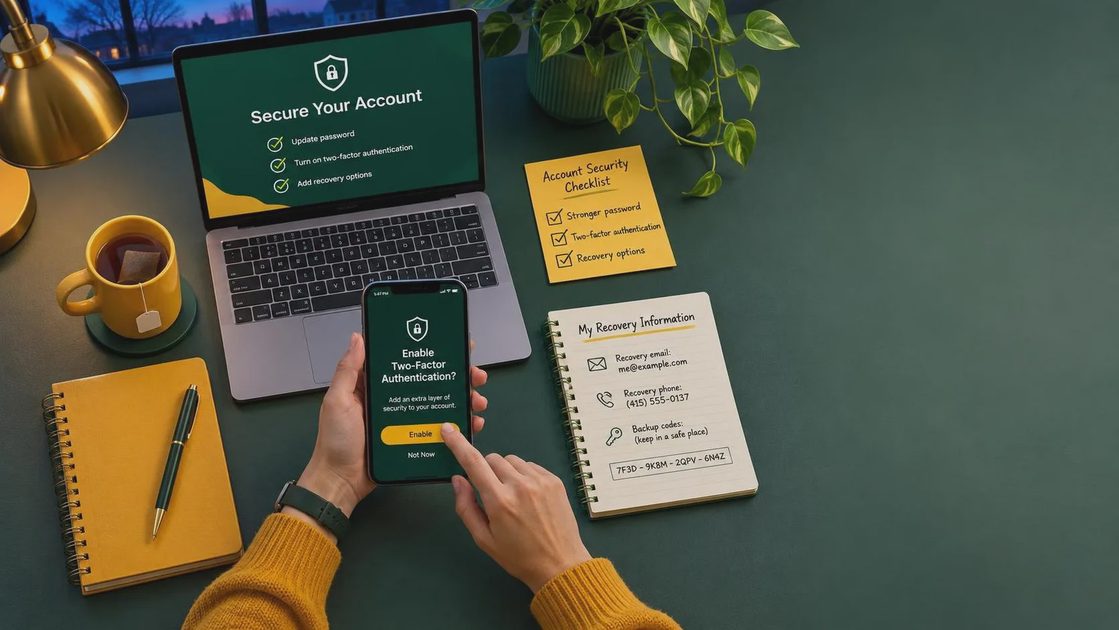
Treat a backup code like a spare key, not like a coupon. Anyone who has an unused code and your password may be able to enter the account. Store the codes where you can reach them during a phone failure but where a casual visitor, browser extension, or shared tablet cannot read them.
A password manager is convenient because it can encrypt the note and synchronize it across approved devices. A paper copy can be useful for a spouse or older parent who does not want to navigate an app. Avoid keeping the only copy in the account that the code is meant to recover. If your email account is locked, an email attachment containing its own recovery codes will not help.
After saving the list, test the process only if the service clearly supports it without signing you out of every device. Do not use a real code merely to prove that it works. Instead, confirm the account name, locate the recovery-code settings, and make sure another adult in the household knows where the protected record is stored.
A simple household recovery checklist
Once a month or after a major phone change, review the accounts that would cause the most damage if unavailable. Start with your primary email, password manager, financial accounts, medical portal, mobile carrier, and cloud storage. For each one, identify the second sign-in method, the recovery email, the trusted phone, and the location of the backup code.
When a device is lost, change the most important passwords from a trusted device, contact the carrier if the phone number is at risk, and review account sessions. When a code is exposed, assume it is no longer private and generate a new set. When a caller asks for one, end the call and contact the organization through its official app, statement, or website.
The goal is not to build a complicated security bunker. It is to make the next interruption manageable for the whole household. If you keep asking, “Where is my backup code?” that is a sign to create one clear, protected record today. Take the next safe step: open the official security settings, confirm your recovery options, and store the new codes before you need them.