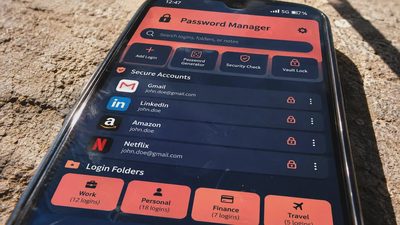

When several people share bills, devices, school portals, streaming accounts, and healthcare logins, a family password manager can replace scattered notes and repeated password resets with one calmer system. The goal is not to turn your kitchen into a security operations center. It is to give each person a private place for their own passwords, a safe way to share selected accounts, and a recovery plan for the day someone loses a phone.
Take the next safe step: write down the three accounts your household struggles with most. Maybe it is the internet provider, a shared grocery account, or a parent’s medical portal. Those accounts will show you what your system needs to handle first.
What a family password manager actually does
A family password manager stores login information in an encrypted vault protected by a master password or passkey. Instead of remembering dozens of passwords, each person remembers one strong credential and lets the manager create long, unique passwords for other accounts. Many products also store secure notes, credit card details, Wi-Fi information, recovery codes, and software licenses.
A useful family password manager separates private vaults from shared folders. Your spouse might need access to the electric utility account, while your child should not see your bank login. An older parent may need a simple way to share a pharmacy portal password without sending it through text messages. Good products support these different levels of access instead of treating every household member as an administrator.
Common choices include 1Password Families, Bitwarden Families, Dashlane Friends & Family, and Keeper Family. Their pricing and features change, but the important comparison is practical: Can everyone sign in on their devices? Can you revoke access? Can one trusted adult help with recovery without seeing every private entry? A low-cost plan that your family uses is more valuable than an impressive plan that confuses everyone.
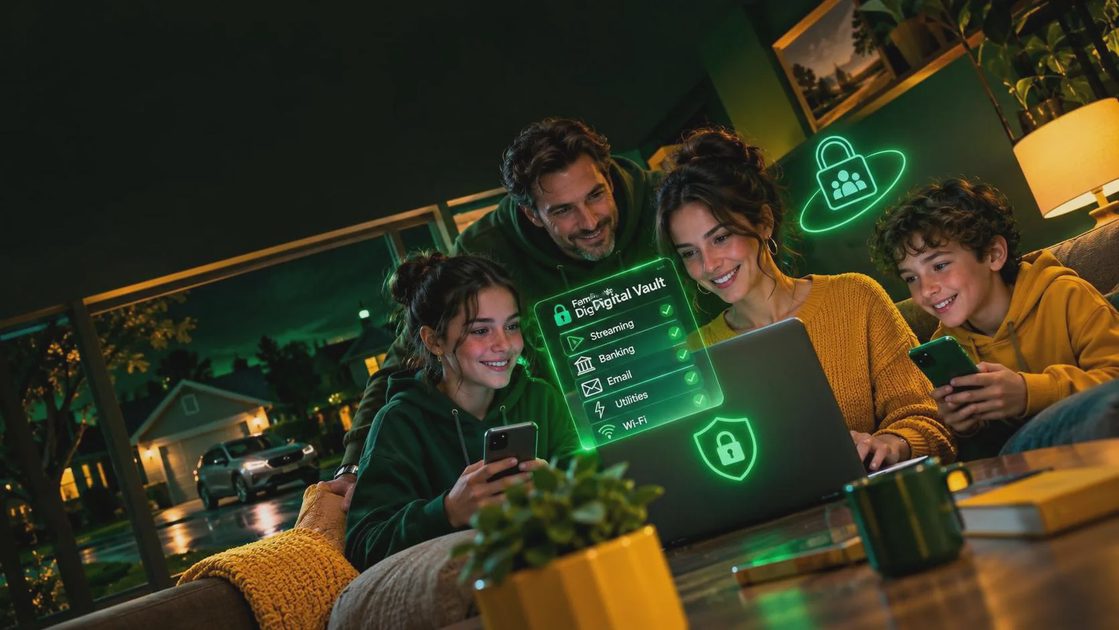
How to compare family password manager features
Start with account recovery. A manager should explain what happens if the primary account holder forgets the master password, loses a phone, or becomes unavailable. Some services offer emergency access, recovery contacts, or an account recovery process. Read the details before you need them. Recovery is not the same as a company employee being able to read your vault; in many systems, the design limits what the provider can access.
Next, examine sharing. Look for shared vaults or collections, permission controls, and a clear way to remove a person from a shared account. A shared folder named “Household Bills” is easier to manage than a single document containing every password. Also check whether the manager alerts you about reused, weak, or exposed passwords. Treat those alerts as a to-do list, not proof that someone is currently inside your account.
Device support matters just as much. Check for dependable apps and browser extensions on iPhone, Android, Windows, and Mac. Test autofill on the browsers your family actually uses. A product can be technically strong and still fail if a parent has to navigate five confusing screens to retrieve a login.
Set up the family vault without creating new confusion
Choose one account as a trial. For example, move the household streaming service first, then the utility account, then email recovery information. Install the official app from the Apple App Store, Google Play, or the vendor’s verified website. Create separate accounts for each adult rather than passing around one master login.
Use a short, memorable master passphrase made from several unrelated words. Do not reuse it for email, banking, or social media. Turn on multifactor authentication for the password manager itself, preferably with a security key or an authenticator app when those options are available. Save emergency recovery information in a secure offline location, such as a sealed envelope in a home safe.
When adding a child, keep the explanation simple: “This app helps us remember passwords. It does not give you permission to buy things or read adult accounts.” For a parent, try: “You still control your accounts. I am helping create a safer way to find the right login when you need it.” Respect builds better habits than a lecture about hackers.
A family password manager works best when the household agrees on naming. Use labels such as “Water bill,” “Mom medical portal,” and “School lunch.” Add the website address, username, renewal date, or support phone number where useful. Never put highly sensitive information into a shared entry unless everyone who can access it truly needs it.
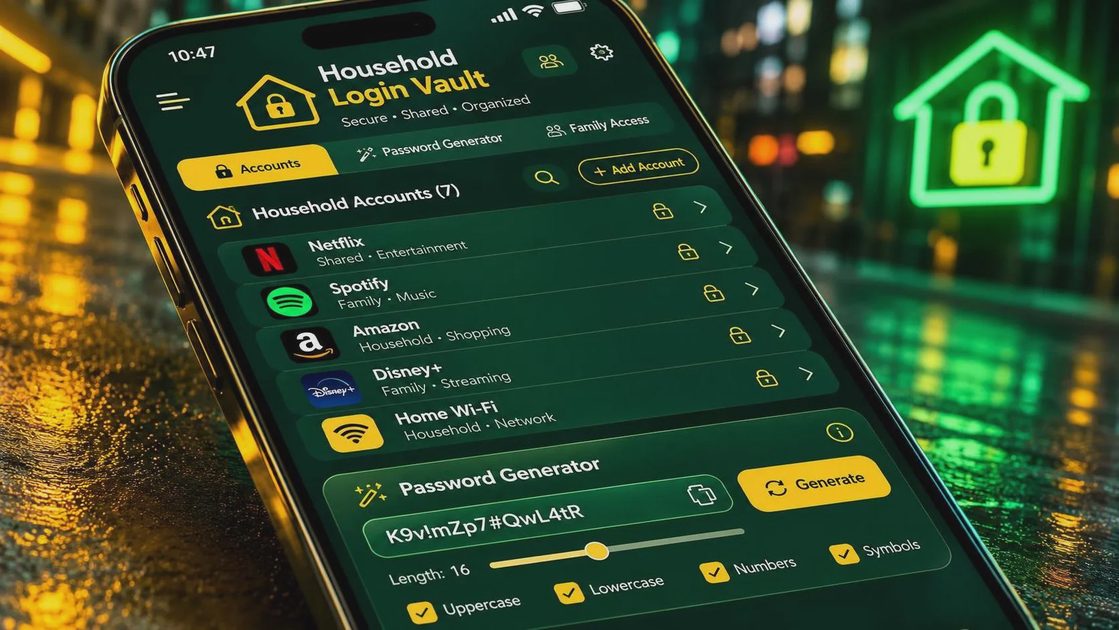
A practical sharing plan for spouses, children, and parents
Begin with the smallest useful circle. Two spouses may share home services, insurance, taxes, and travel accounts while keeping personal email, work credentials, and private financial accounts separate. Shared access should support the task, not erase personal boundaries.
For teenagers, create a shared collection for school services, family streaming, device recovery codes, and approved gaming accounts. Do not place payment cards in that collection unless the child genuinely needs access. Review permissions when a child gets a first job, leaves a school program, or stops using an account.
For an aging parent, choose two or three high-value accounts first: email, mobile carrier, and banking alert access. Email deserves special attention because it often controls password resets elsewhere. A helper can have emergency access or a shared login without knowing every detail of a parent’s life. Agree in advance that the helper will not change a password or move money without speaking directly with the account owner.
Use this script when introducing the system: “I am not asking for all your passwords. I want us to have a safe place for the few accounts we may need to manage during an emergency.” That distinction often lowers resistance.
What to do when a device is lost or a password is exposed
If a phone is lost, start with the phone maker’s device-finding service and the carrier, then sign in to the password manager from a trusted device. Change the manager’s master credential if you believe the device was unlocked, remove the lost device from active sessions, and review emergency access settings. Do not click recovery links from unexpected texts or calls; open the official app or type the known website yourself.
If one password was reused and exposed, change that password everywhere it appears. Change the email account first if it controls other resets, then banking, shopping, social media, and utilities. Preserve suspicious emails, text messages, login alerts, and transaction records before deleting anything. If money or identity information is involved, contact the bank through the number on a statement or card, not a number supplied by the caller.
A family password manager cannot prevent every scam, stolen device, or dishonest message. It reduces the damage caused by password reuse and makes the right response easier to repeat.
Keep the system healthy with a monthly check
Set a ten-minute household review on the first weekend of each month. Confirm that adults can sign in, remove accounts no one uses, update shared passwords after a household change, and check whether any recovery phone number or email address is outdated. Review who has access to shared folders, especially after a breakup, move, job change, or new caregiver arrangement.
Once a year, test the plan. Ask each adult to find one shared account without assistance. Confirm that the emergency contact understands what to do and what not to do. Check that recovery codes are still available and that the password manager apps are updated.
The best family password manager is not the one with the longest feature list. It is the one that gives your household clear boundaries, reliable access, and a calm answer to “What do we do now?” Start with one account, explain the plan without blame, and build from there. Take the next safe step.