When you ask, “what happened to my phone,” start with one safe action: stop tapping through unfamiliar pop-ups, messages, or login prompts. Put the device on a table, take a breath, and notice what changed. Is the screen cracked, is the phone missing, are apps opening by themselves, or did an account suddenly log out? These details point to different problems, and most do not mean someone is actively controlling the device.
Your goal is not to diagnose everything in one minute. Your goal is to prevent a small device problem from becoming an account, money, or privacy problem. Take the next safe step, then work through the evidence in order.
What changed, exactly?
The question “what happened to my phone” often covers several unrelated situations. A phone can freeze after an operating-system update, lose service because of a carrier issue, restart because of a low battery, or display a warning caused by a browser notification. A dropped phone may have a damaged screen or loose charging port. A missing phone creates a different priority: protect the device and accounts before searching for it.
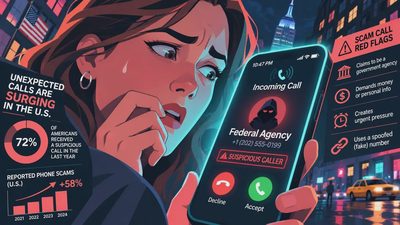
Write down the first thing you noticed and the approximate time. If a message, call, or pop-up appeared, save a screenshot if it is safe to do so. Do not call a number shown in a surprise security alert. Legitimate Apple, Google, bank, and carrier support pages can be reached by typing the organization’s known website into a browser or using a separate device.
Look for simple explanations before assuming a breach. Check whether the phone has power, whether Airplane Mode is enabled, whether Wi-Fi works on another device, and whether the problem affects one app or the entire phone. If only one app is behaving strangely, close it and check for an update through the official App Store or Google Play Store.

If the phone is lost, stolen, or physically damaged
If the device is missing, use Apple Find My or Google Find My Device from another trusted device. Mark it as lost, add a callback number that does not reveal sensitive information, and lock it remotely. Do not travel to a location shown on a map or confront anyone who may have the phone. If theft is suspected, contact local law enforcement and your wireless carrier.
Call the carrier and ask them to suspend the line or place a temporary account protection measure on it. Ask whether the account has an unauthorized SIM change or eSIM activation. A SIM swap can move a phone number to another device, so this is a reason to contact the carrier promptly, especially if texts and calls stopped unexpectedly.
If the phone is damaged but still turns on, do not repeatedly enter a passcode if the screen is misreading touches. Back up important photos and documents while the device is stable, then seek repair through the manufacturer, carrier, or a reputable local service. A cracked screen is not automatically a cybersecurity incident, but exposed hardware and unreliable touch controls can create privacy and data-loss risks.
Protect accounts before investigating deeply
When the answer to “what happened to my phone” is unclear, secure the accounts that matter most. From a trusted computer or another family member’s device, change the password for your primary email first. Email often controls password resets for banking, shopping, social media, and healthcare portals. Use a new password that is not reused elsewhere, and sign out of unfamiliar sessions if the provider offers that option.
Next, review your Apple Account or Google Account security page. Check recent sign-ins, connected devices, recovery phone numbers, and security alerts. Remove a device you do not recognize, but save screenshots or notes first if you might need to explain the event to support. Turn on multifactor authentication using an authenticator app or security key when available. Text-message verification is useful, but it is not the only option.
For banking and payment apps, call the number on the back of your card or use the bank’s official app. Explain what changed and ask whether there were recent login attempts, password resets, new payees, transfers, or device enrollments. Never share a one-time verification code with an unsolicited caller. A real support agent should not need that code to prove you are trustworthy.
What the symptoms usually mean
A phone that is slow after an update may need time to finish background tasks, especially when storage is nearly full. Remove unused downloads, review large videos, and restart the device. A battery that suddenly drains can result from high screen brightness, location-heavy apps, an aging battery, or poor cellular coverage. If the phone becomes unusually hot, swells, smells chemical, or will not charge normally, unplug it and arrange professional service rather than continuing to use it.
Unexpected calendar events or browser pop-ups are often caused by a subscribed calendar or website notification, not a complete phone takeover. Delete unfamiliar calendar subscriptions from the calendar settings and revoke notification permission for suspicious websites. Do not install a “cleaner,” remote-support app, or antivirus tool because a pop-up tells you to. That is a common way scammers gain access.
If calls, texts, or contacts look different, check whether the phone installed a recent update or restored from a backup. Review call forwarding, messaging settings, and unknown profiles. On an iPhone, look at Settings for unfamiliar device-management profiles. On Android, review installed apps, accessibility access, and device administrator permissions. Remove only items you recognize as unwanted, and ask the manufacturer or carrier for help if a setting is unclear.
When money or identity information may be involved
The phrase “what happened to my phone” deserves faster escalation if you see an unfamiliar bank alert, password-reset email, new phone number on an account, or a message sent that you did not write. Contact the affected bank, card issuer, email provider, and carrier through verified channels. Ask what records they can preserve and whether the account needs a fraud flag, password reset, device removal, or replacement card.
Save dates, screenshots, phone numbers, sender addresses, receipts, and support case numbers in one folder. Do not delete suspicious messages until the bank, carrier, or law enforcement agency says they are no longer needed. If money was sent, report it to the financial institution immediately; speed can affect what recovery steps are available. For suspected identity theft, use IdentityTheft.gov for federal guidance and a personalized recovery plan.
A useful script is: “My phone or account changed unexpectedly. I am not sure whether this is a device problem or unauthorized access. Please review recent activity, secure the account, and tell me what evidence you need.” That statement is clear without claiming more than you know.
Build a simple household recovery plan
After you resolve what happened to my phone, write a small incident card for the next time. Include the carrier’s official support number, bank contact instructions, the location of backup codes, and the names of two trusted people who can help. Do not write passwords or full account numbers on the card. Store it somewhere private, such as a locked drawer.
Keep operating systems and apps updated, use a screen lock, and enable automatic backups. Review account recovery information twice a year, especially after changing a phone number. Families can also agree that nobody will rush another person into clicking a link, sharing a code, or installing remote-access software during a stressful call.
If a parent or spouse asks, “what happened to my phone,” avoid blame. Say, “We do not need to figure out everything right now. Let’s protect the phone, save what we can see, and call the right organization.” That calm response creates room for accurate decisions. The safest answer is usually a sequence, not a theory: stabilize the device, preserve evidence, secure accounts, notify the right organization, and take the next safe step.