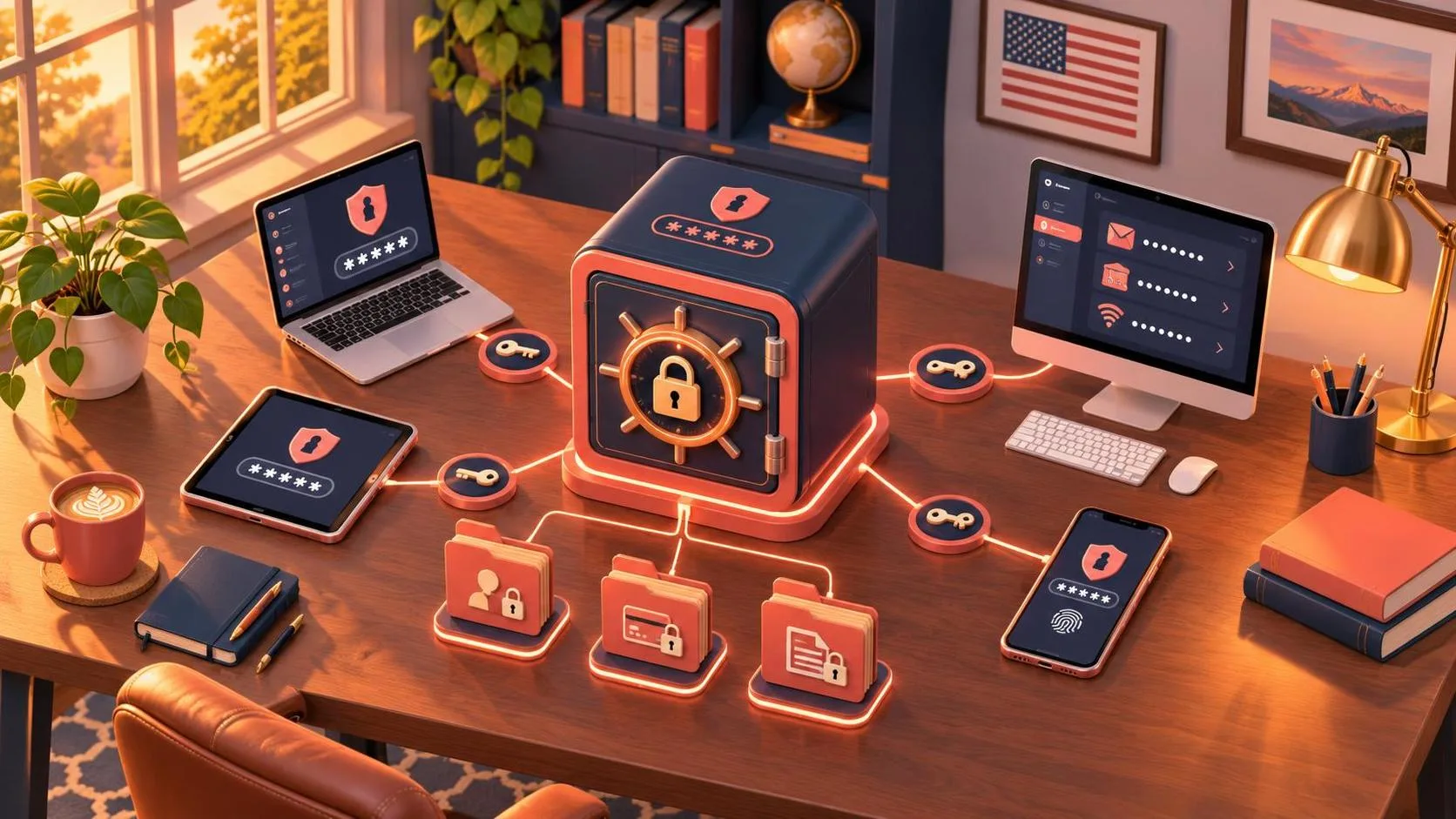
The safest first step is to choose one trusted password vault application and use it to create a unique password for your primary email account. A vault, also called a password manager, stores your logins behind one main credential so you do not have to memorize every password. Start with an app from its official website or your device’s official app store, not a link in an unexpected message.
A good place to begin is Bitwarden if your household uses a mix of devices and wants a cross-platform option. 1Password is worth considering if you want a paid service with family-sharing options. Apple Passwords is a convenient starting point for a household primarily using Apple devices. Check each provider’s current device support, sharing features, and pricing before deciding; the best choice is one your family can actually use and recover.
What a password vault does and does not do
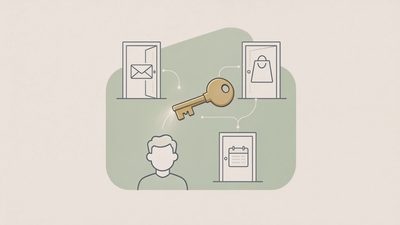
A password vault application keeps account credentials in an encrypted vault and can help generate strong, different passwords. Encryption scrambles the contents so they cannot be read without the appropriate key. Depending on the app and your settings, the vault may also fill login forms and sync across devices.
That does not make every scam disappear. Someone can still trick you into approving a fraudulent sign-in or giving away a verification code. A vault may decline to fill a password on a lookalike website, which is a useful warning, but it is not a substitute for checking where you are signing in.
The trade-off is straightforward: protecting the vault and planning for recovery matter more because it holds the keys to many accounts. That is manageable without turning your kitchen into a security operations center.
Set up your vault without locking yourself out
Install the password vault application on a device you trust, then create a long, unique master password. A passphrase made from several unrelated words is often easier to enter than a jumble you cannot remember. Do not reuse a phrase from another account, and do not put it in a text message or shared note.
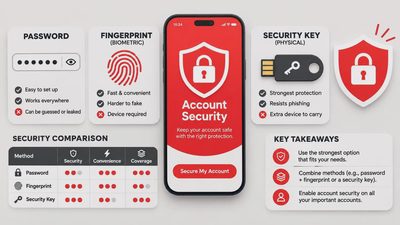
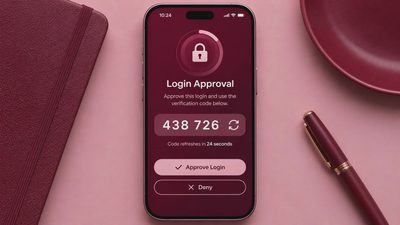
Turn on multifactor authentication for the vault if the service offers it. This asks for another proof of identity in addition to your master password. An authenticator app or a security key can provide that extra layer; follow your provider’s instructions and make sure you understand how to use it before signing out.
Now make a recovery plan. Providers differ: some supply a recovery code, some offer family or account recovery options, and some cannot restore access if you lose the master password. Save any provided recovery material somewhere physically secure, such as a locked household safe, and tell a trusted person how to find it in an emergency. Do not assume customer support can unlock an encrypted vault for you.
Set the app to lock when your device is unattended. A fingerprint or face unlock can make everyday access easier on a supported device, but keep the master password and recovery information available: you may still need them after a restart, update, or device change.
Move your most important accounts first
You do not need to change every password this afternoon. Start with the email account used to reset your other logins, then move to your financial accounts, mobile carrier, and primary phone or computer account. Add healthcare and shopping accounts as time allows.
For each account, sign in through the organization’s official app or a web address you already trust. Save the existing login in the vault, then change the password through the account’s security settings. Let the vault generate and save a unique replacement. Before moving on, confirm that you can sign in with the new password.
A password vault application can also store passkeys if it supports them. A passkey is a different way to sign in, usually approved with a device PIN, fingerprint, or face scan. Availability varies by account and device. Before creating one, check where it will be stored and how you can recover access if that device is lost.

If you import passwords from a browser or another manager, handle the export carefully. An exported file may be readable without a password. Use a trusted device, import it promptly, verify the entries, and securely remove the temporary file and any unnecessary copies according to your device’s instructions. Avoid sending the file by email.
Make sharing and emergencies less awkward
Choose a password vault application with separate accounts and intentional sharing if several people need access. A shared household entry can make sense for a utility bill; a personal healthcare portal generally belongs in its owner’s private space. Check what a shared folder lets each person see or change before adding sensitive information.
With an older parent, try: “Would it help if we set up a safe place for your passwords together? You can decide what stays private and what you want me to help with.” Let the account owner stay involved, including in recovery decisions. Access to a vault does not replace any permission or legal authority an institution may require.
For a child, check the provider’s age requirements and family settings, and keep school-managed accounts under the school’s rules. An adult should not need to know every private password to help a young person learn how to create and recover accounts.
Write a small emergency card listing the vault provider, where recovery instructions are kept, and whom to call. Keep passwords and recovery codes in their protected location, not on a card taped to the refrigerator. Review the plan when someone changes phones or leaves the household.
If you suspect the vault or a device is compromised
A suspicious message is not proof that your vault has been opened. Do not click its links, call a number in it, or give anyone your master password or one-time code. Preserve the message or a screenshot, including the sender and time, without forwarding sensitive credentials.
From another trusted device, go directly to the vault provider’s official site or app and review its security guidance. If you believe someone obtained your master password, follow the provider’s incident instructions, change it from a trusted device, and review active sessions and multifactor settings. Depending on what was exposed, you may also need to change passwords stored in the vault, starting with email and financial accounts.
Contact your bank through the number on your card or its official app if financial credentials or transactions may be involved. If a device itself may be infected, get trustworthy technical help before entering new passwords on it. Take the next safe step: today, choose your vault and write down where its recovery instructions will live.